How to Automatically Add Alt Text to Images in Google Docs
Adding alternative text (alt text) is one of the most critical steps in making documents accessible. It ensures that users with visual impairments can understand the content of images. However, manually describing every image in a long Google Doc is a tedious, time-consuming process.
Fortunately, you can now automate this workflow entirely using AI. In this guide, we'll show you how to use Inkable Docs to generate accurate, context-aware alt text for all your images in seconds.
The Problem: The Manual Workflow
If you've ever tried to make a 50-page document compliant, you know the struggle. The native Google Docs method requires you to:
- Right-click an image.
- Select "Alt text" from the menu.
- Write a title (optional) and a description.
- Click OK.
- Repeat for every single image.
The Reality Check
For a document with 20 images, this process can easily take 30-45 minutes of focused work. Most people simply skip it, leaving their documents inaccessible.
The Solution: Automatic AI Alt Text
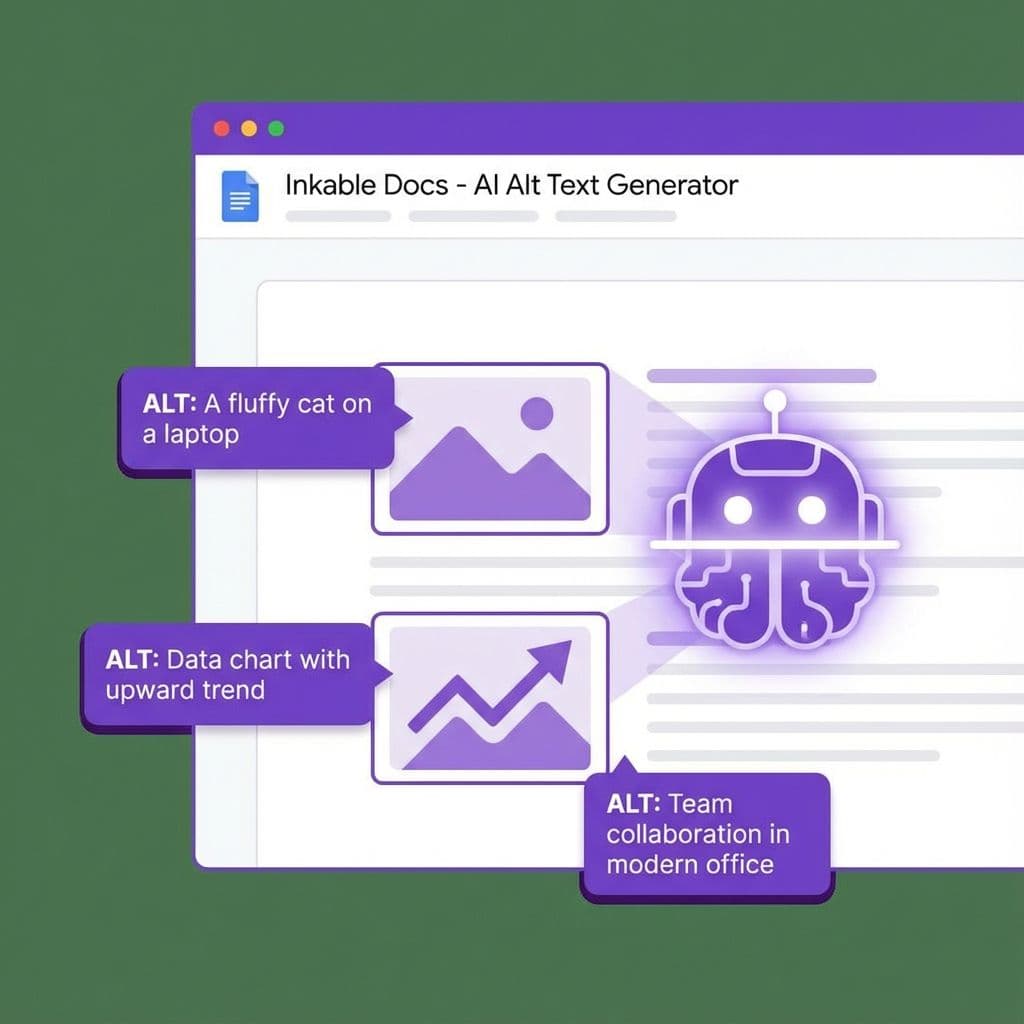
Inkable Docs replaces this manual drudgery with a smart, one-click solution. Our advanced AI analyzes the image content and the surrounding document context to generate meaningful descriptions.
Step-by-Step Guide
Install and Open Inkable Docs
If you haven't already, install the Inkable Docs add-on from the Google Workspace Marketplace. Once installed, open it via the right sidebar in Google Docs.
Run the Accessibility Check
Click the "Check Accessibility" button. Inkable Docs will scan your entire document for various issues, including missing alt text, heading structure, and color contrast.
Review Automatic Suggestions
In the results panel, you'll see a section for "Images without Alt Text". Inkable has already generated a suggested description for each image. You can hover over the "Fix" button to preview what the AI has written.
One-Click Fix
Simply click "Fix" next to an image, or use the "Fix All" button to apply AI-generated alt text to every image in your document instantly.
Why AI Does It Better
- Speed: What took 30 minutes now takes 30 seconds.
- Context Awareness: The AI understands if an image is a chart, a screenshot, or decorative, and labels it appropriate based on the surrounding text.
- Consistency: Ensures all images have a consistent tone and level of detail.
Conclusion
Accessibility shouldn't be a burden. By automating the mechanical parts of compliance—like writing alt text—you free up time to focus on the content itself. Inkable Docs transforms a tedious chore into a seamless, magical experience.
Ready to automate your accessibility workflow?
Install Inkable Docs today and fix all your missing alt text with a single click.
Install Inkable Docs